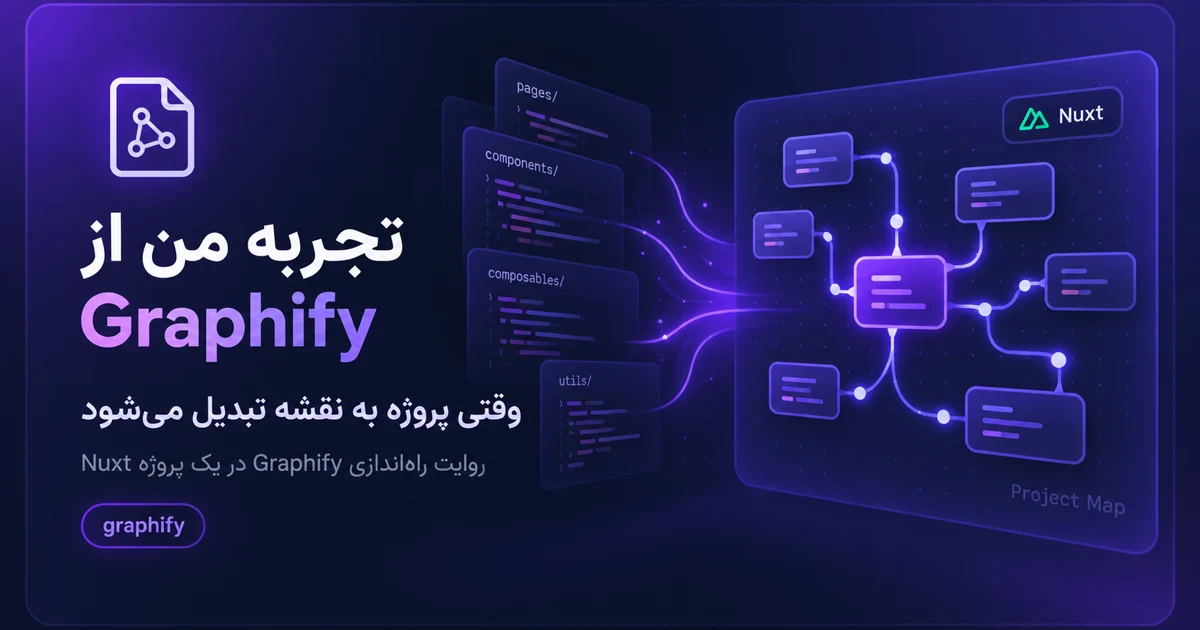
Using Graphify as a Project Map: My First Real Experience
6 min read Ali Arghyani
graphifyai-workflowknowledge-graphnuxtdeveloper-tools
For a while, I had a strange feeling when working with AI inside a real codebase.
The model could be strong. The prompts could be detailed. The repository could be organized. But after a few turns, the work still depended on how much context we could fit into the conversation and how well the assistant could remember the shape of the project.
That is where I started experimenting with Graphify.
I did not want another documentation file that slowly becomes outdated. I wanted something closer to a living map of the project: files, components, relationships, communities, and the parts of the system that quietly connect everything together.
Before using Graphify, the normal workflow was familiar:
This is not a bad workflow. In fact, it is still necessary.
The problem is that every new task starts by rebuilding a mental model. In a small project this is fine. In a growing project, it becomes expensive. Not only in time, but also in tokens, attention, and the risk of missing one important relationship.
Graphify changed the first step.
Instead of asking, "Where should I start looking?", I could ask the graph.
The first serious step was cleaning the project from an older workflow method that I did not want the project to use anymore.
There were old agent files, command files, rule files, and generated references related to the previous method. They were not part of the future direction of the project, so they had to be removed before Graphify became the main navigation layer.
After the cleanup, I rebuilt the graph and labeled the communities.
The result was a project map with:
Those community names mattered more than I expected. A list like "Community 0" or "Community 1" is technically correct, but it does not help me think. A list like "Blog Post Components", "Portfolio Data Store", "Bottom Nav Scroll", or "Resume Section Components" immediately gives the graph a human-readable shape.
Graphify became useful only after the graph had meaningful community names. The graph was no longer just data; it became a map I could actually navigate.
For this article task, I used Graphify before reading the project manually.
The graph query returned 10 relevant nodes for how bilingual blog posts work in this Nuxt project. That response was under 300 tokens of useful context.
For comparison, the raw
graph.json
GRAPH_REPORT.md
This does not mean Graphify "saved 158,000 tokens" in every task. That would be too dramatic and not honest.
What it did save was the need to load the whole graph or wander through the project blindly. It turned a broad discovery phase into a small, scoped answer. After that, I still read the exact files that mattered: the content schema, the authoring guide, the blog route, and a couple of reference posts.
That is the workflow I want:
Graphify is not a replacement for understanding the code.
It is also not a magic tool that writes better software by itself.
For me, its value is more specific: it reduces the cost of orientation.
When I open a project after a few days, or when an AI assistant needs to understand where something belongs, the graph gives us a starting point with structure. It shows the important nodes, the communities, and the relationships that are easy to forget when you only browse files one by one.
That changes the feeling of working with AI.
The assistant becomes less dependent on guessing. I become less dependent on explaining the same project structure again and again. The project itself starts carrying more of its own context.
The biggest win was not speed. It was reducing the amount of project structure I had to reload into my own head.
After this experiment, my preferred setup for other projects is simple.
First, remove old or conflicting workflow instructions. If the project has outdated agent rules, stale generated files, or old process documents, clean them before building the graph. Otherwise, the graph will faithfully map noise too.
Second, run Graphify on the project and generate the visual output, JSON graph, and report.
Third, label the communities. This step is not cosmetic. Clear labels make the graph usable for humans.
Fourth, write a small project instruction that says: for codebase questions, query Graphify first. This keeps future tasks from falling back into broad, expensive exploration.
Fifth, after code or content changes, update the graph.
That final step is important. A graph that is not updated becomes another stale document. A graph that is updated becomes a project memory.
There are limits.
If a task needs exact behavior, I still need to read the source. If a page must be validated, I still need to run the build and inspect the output. If a claim is not present in the graph, I should not invent it.
Graphify helps with orientation, not accountability.
That distinction matters.
A good AI workflow is not about trusting the tool blindly. It is about creating a system where the tool, the codebase, and the human can check each other.
This was my first real experience using Graphify as the main project map, and it changed how I want to work with AI-assisted development.
I still want the assistant to read files carefully. I still want tests, validation, and precise changes.
But I do not want every task to start from an empty mental page.
Graphify gives the project a memory. And once a project has memory, working with AI feels less like repeatedly explaining the same room and more like navigating a place that finally has signs on the walls.